Skip to content
Boldo Aprova icon
Boldo Bioma · Web app

Aprova

Review and approval of videos, images and PDFs between Boldo and its clients.

WebMacWindowsIn Claude
What it does

The client commentson the exact frame

Aprova is where Boldo shows work in progress to clients. The team uploads each cut into round folders (R1, R2…), and Aprova keeps the versions in order and makes the review copies.

The client opens a link in any browser, with nothing to install and no account. They comment on the exact frame, draw on it, paste references, compare with the last round and approve. The team sees every comment, who approved what and what changed between rounds.

Who uses it

Boldo's team, who sign in with the Boldo Account, and its clients, who review through links as guests.
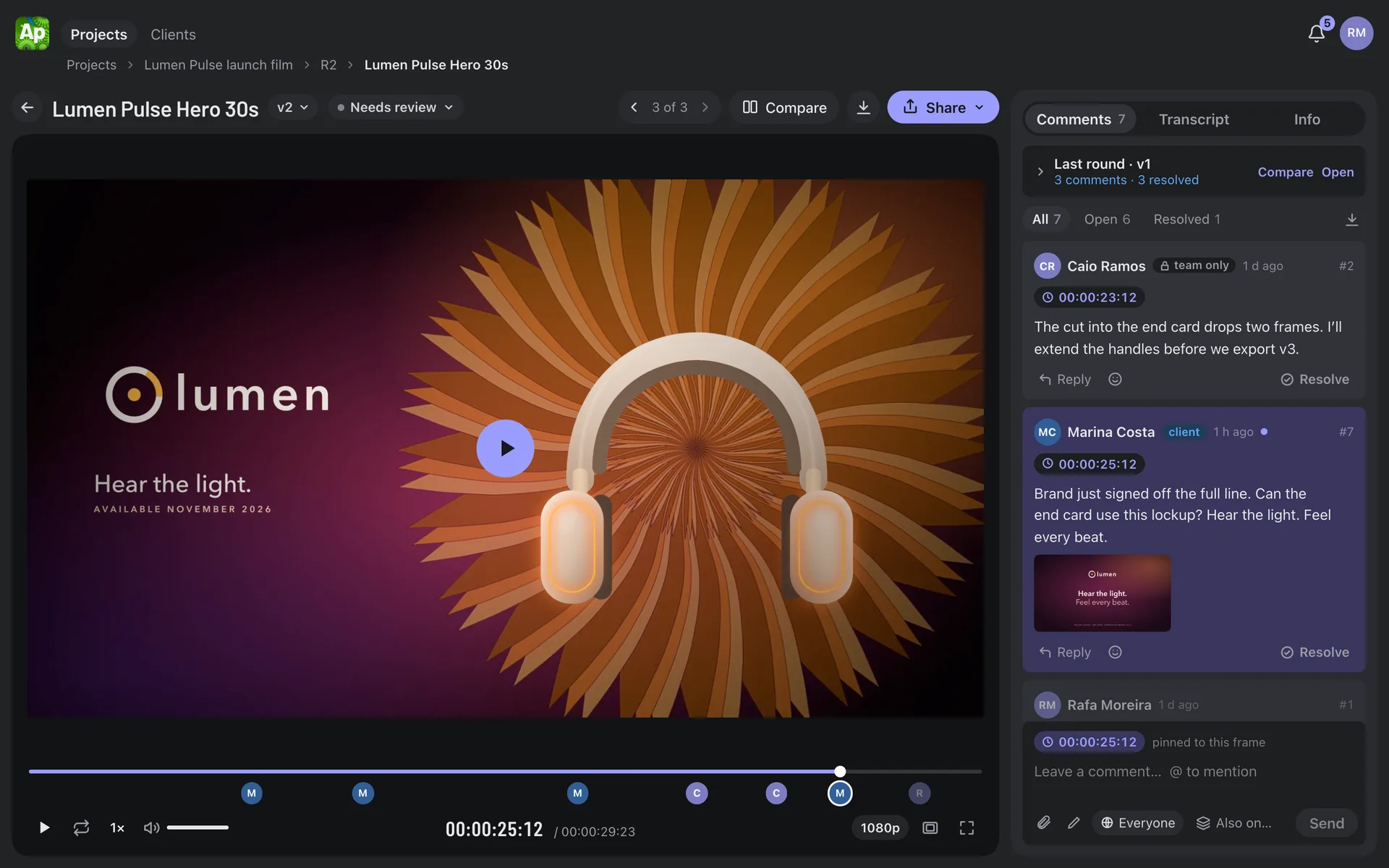
The screens
01 / 07
aprova.boldo.ag/p/…
The player: comments pinned to the frame, team-only notes and a reference pasted by the client.

Screens with demo data, from made-up clients.

In six stepsHow it works

  1. 01UploadCreate the project and the round folders and drag in the cuts: video, images or PDFs. Review copies are made automatically.
  2. 02Review insideThe team comments on the exact frame, draws, leaves team-only notes and sets each file's status.
  3. 03SharePick the files and send a link or the project's client page: open, with a password, or by invitation with an email code.
  4. 04The client reviewsIn any browser, also on the phone: watch, comment on the frame, draw, paste a screenshot and compare with the last round.
  5. 05Follow upComments arrive in the bell and in the desktop app. The team replies, resolves and uploads v2 into the next round.
  6. 06ApproveEach reviewer approves each version, and the approval is kept as a receipt.
What’s inside

Features

Comments on the exact frame
Pinned to a frame or a range, with timecode. Pins on images and comments page by page on PDFs.
Draw on the frame
Pen, arrow, line and rectangle, in 8 colors. The drawing stays with its frame.
Pasted references
Paste a screenshot or attach images to any comment, for the team and for clients.
Versions and compare
Versions come from the file names and round folders. Compare side by side or with a curtain.
Links and client page
Open, password or invite-only, with downloads and expiry. Every visit and approval is logged.
Approvals per person
Each reviewer approves each version, with undo. Everyone sees what is still waiting for them.
Storyboards
Build one from stills, or import it from Google Slides, and turn it into a PDF for review.
Captions and search
On request, Aprova transcribes the audio on Boldo's server: captions, a transcript and search.
For the edit
Export the comments as a PDF, a spreadsheet, Premiere markers or a Resolve EDL.
Trash
A deleted file waits 30 days, with its comments and approvals.

Where it runs

Web
aprova.boldo.ag for the team. Clients open their link in any browser, also on the phone.
Mac and Windows
The app shows new comments on the Dock or taskbar, sends notifications and updates itself. The Mac version is signed and notarized by Apple.
Claude
A connector for Claude (MCP). By design, it cannot create share links.

Security

The team signs in with the Boldo Account (password plus a second step). Roles are checked again every 10 minutes.
Clients need no account. Link passwords are stored as hashes, email codes expire in 10 minutes, and turning a link off cuts access at once.
Clients see only the files in their link and only public comments. Team-only notes never leave the team.
Videos and images are stored in Cloudflare R2. Playback and download addresses are signed and expire.
Client link pages are not indexed by search engines, and the link is not passed on to other sites.
Transcription runs on Boldo's own server. The client's video never goes to an outside service.
Your data

What Boldo Aprova does with your Google account

Privacy Policy →

When you connect Google Slides, Aprova keeps the permission on its server, encrypted (AES-256-GCM), so you can import again later. Imported slides become images inside the storyboard and stay there until you delete the storyboard or the project.

Nothing else from your Google account is stored. "Disconnect Google", in the import window, removes the permission at Google and deletes it here. You can also remove the access at myaccount.google.com/permissions.

Technical details: the Google permissions
presentations.readonlyImport a storyboard from Google Slides. After you click "Connect Google Slides", Aprova reads only the presentation you choose and the slides you ask for (up to 40), and turns each slide into a scene. It never edits your presentations. Google is not used to sign in.