Sincroniza
Google Drive in the Mac Finder, plus scheduled backups of your folders.
Google Drivein the Finder
Sincroniza is a Mac menu-bar app with two jobs. It puts your Google Drive in Finder, with My Drive, shared drives and the files shared with you, and downloads each file only when you open it.
It also backs up the folders you choose to Google Drive, every week or whenever you ask. Each upload is confirmed on Drive before anything else happens, and then, if you want, Sincroniza frees the space on your Mac.
Boldo's team, and Mac professionals with large projects whose archive already lives in Google Drive. It is in private beta.
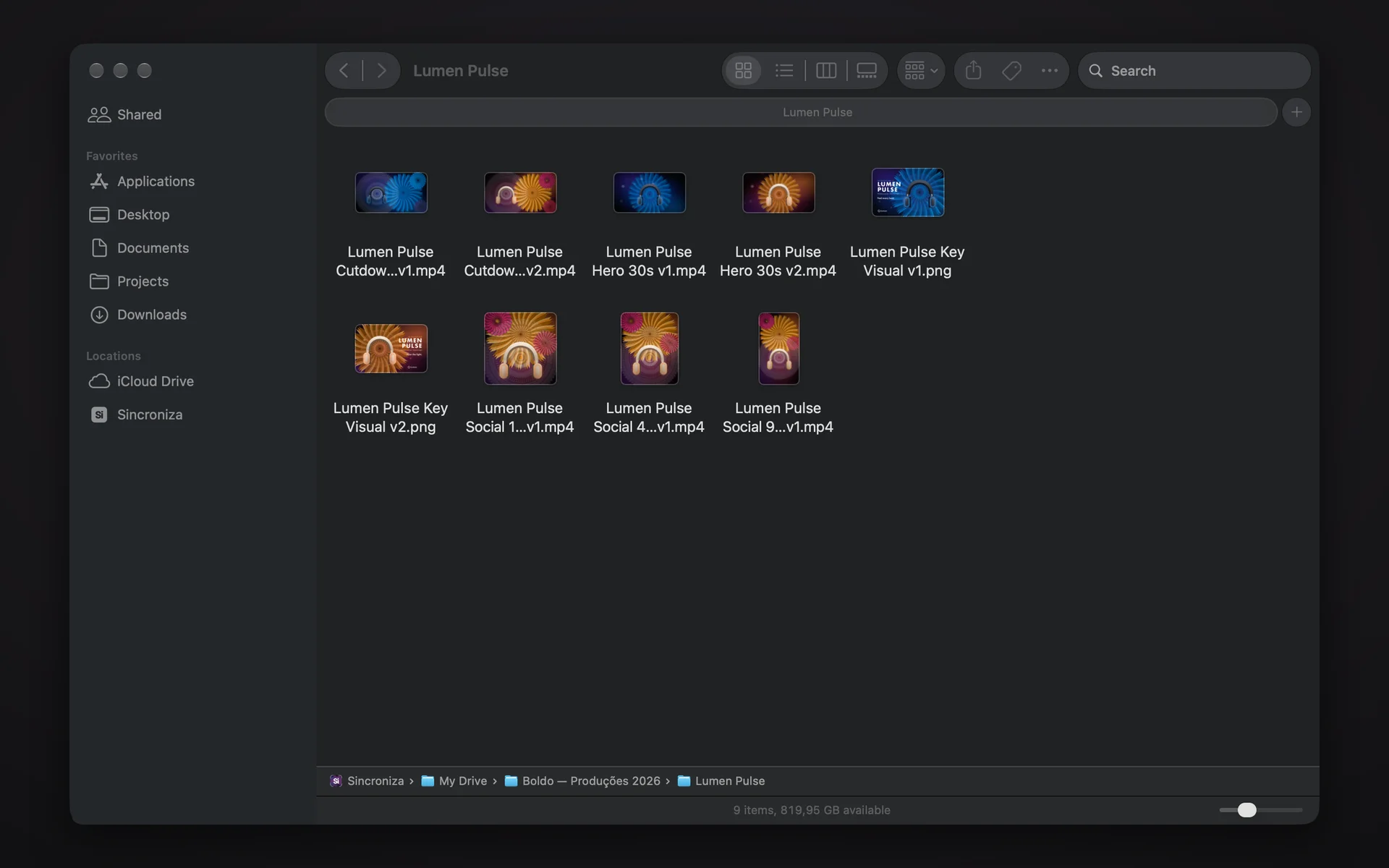
Screens with demo data, from made-up clients.
In six stepsHow it works
- 01InstallDrag Sincroniza to Applications and open it. It lives in the menu bar.
- 02Sign in with GoogleApple's secure sign-in sheet opens Google's consent page. The permission is kept in the Mac's Keychain.
- 03Drive in FinderSincroniza shows up under Locations in Finder. Open a file to download it, or keep it offline.
- 04Choose the backupThe folders on your Mac and a destination folder in My Drive, with ignore patterns.
- 05RunEvery week, on the day and hour you choose, or with Backup Now. A dry run first shows what would go up.
- 06Free up spaceFiles confirmed on Drive can leave the Mac. Folders edited in the last days stay.
Features
Where it runs
Security
Sincroniza runs entirely on your Mac and talks to Google Drive directly: your files and your Google permission never go to a Boldo server.
On the Mac it keeps the permission, in the Keychain; a local database with your backup folders, the list of uploaded files and the history of each run; the Drive file list that Finder shows; and copies of the files you opened or kept offline.
You can purge the cache, reset the databases or remove Sincroniza from Finder inside the app. Signing out deletes the permission from the Mac; to remove it at Google too, use myaccount.google.com/permissions.
Technical details: the Google permissions
driveShow your whole Google Drive in Finder, open and edit those files from Finder, and back up the folders you choose into a Drive folder. Finder has to reach every file you can see in Drive, not only the ones the app created, so a narrower permission is not enough.